If you’ve ever opened a printer’s settings and wondered “What does collate mean when printing?”, you’re not alone. The word sounds technical, but the idea is actually simple.
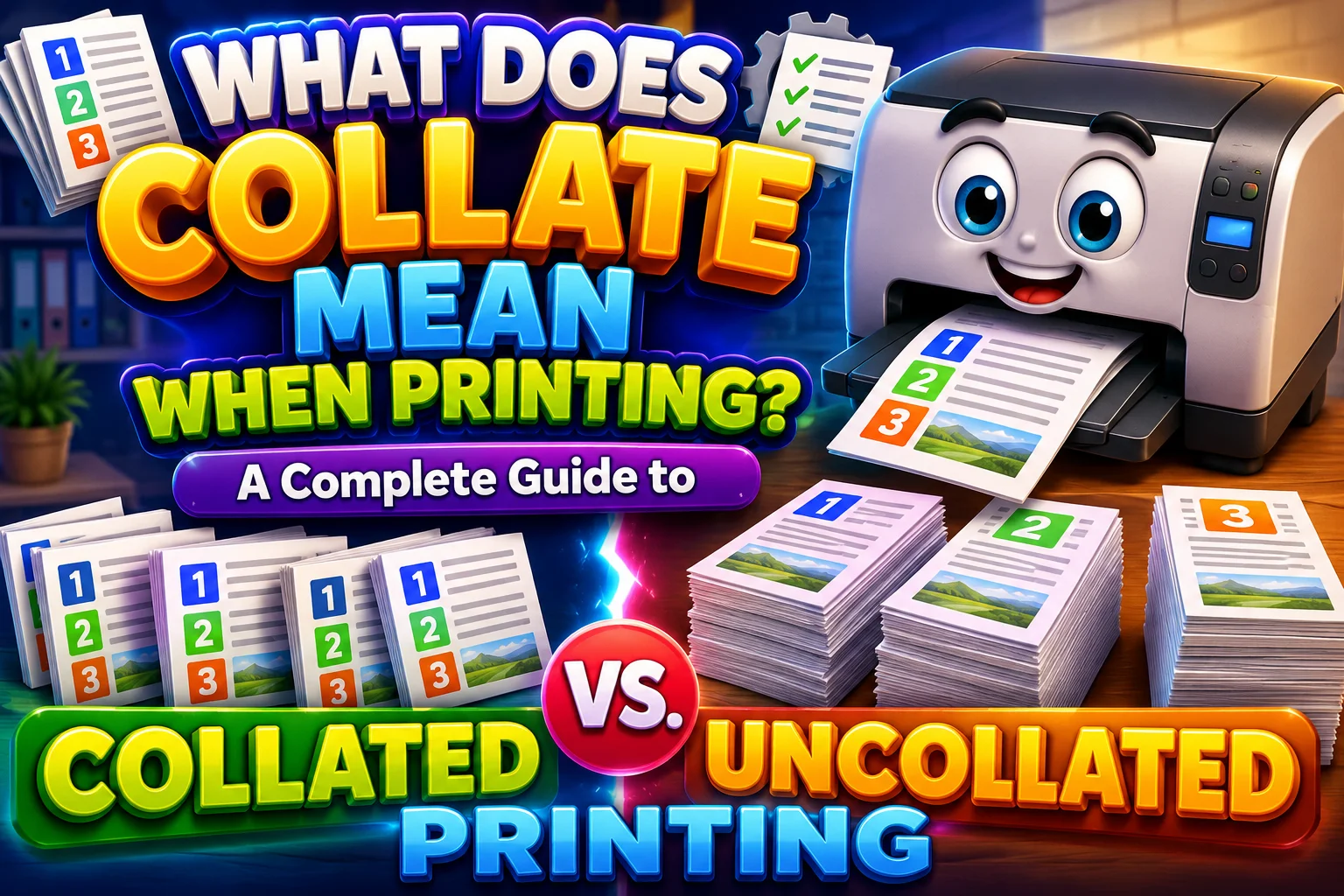
When you print multiple copies of a document, collating tells the printer to organize each copy into the correct page order. For example, if you’re printing three copies of a five-page report, a collated printer produces three complete sets: pages 1–5, then pages 1–5 again, and finally pages 1–5.
Without collation, the printer may produce three copies of page 1, followed by three copies of page 2, then three copies of page 3, and so on.
That small setting can make a surprisingly big difference. If you’re preparing reports, school handouts, contracts, manuals, or meeting packets, proper collation can save you from sorting dozens or hundreds of pages by hand.
This guide explains what collate means when printing, how collated and uncollated printing differ, when you should use each option, and how collation works with other printer settings such as duplex printing and stapling.
Quick Answer: What Does Collate Mean When Printing?
Collate means arranging multiple printed copies of a multi-page document into complete sets in page order.
For example, suppose you print three copies of a four-page document.
With Collate ON, the printer produces:
Copy 1: 1 → 2 → 3 → 4
Copy 2: 1 → 2 → 3 → 4
Copy 3: 1 → 2 → 3 → 4
With Collate OFF, it produces:
Page 1: 1 → 1 → 1
Page 2: 2 → 2 → 2
Page 3: 3 → 3 → 3
Page 4: 4 → 4 → 4
So, if each person needs a complete copy of the document, choose Collate.
If you need stacks of the same page together for later sorting or distribution, Uncollated may work better.
Comparison Overview
The easiest way to understand collated printing is to compare it with uncollated printing.
| Feature | Collated Printing | Uncollated Printing |
| Page arrangement | Complete document sets | Same page numbers grouped together |
| Best for | Reports, packets, manuals, contracts | Page-by-page distribution or assembly |
| Manual sorting | Usually unnecessary | Often required |
| Multiple copies | Very useful | Useful for specific workflows |
| Single-page documents | Little or no difference | Little or no difference |
| Complete copies ready to distribute | Yes | No |
| Works with duplex printing | Yes | Yes |
| Works with stapling | Yes, on supported printers | Not necessarily as complete sets |
| Main purpose | Organize copies | Group individual pages |
The important point is that collation doesn’t change the content of your document. It changes how the printer organizes multiple copies.
For example, a 20-page report remains a 20-page report. Collation simply determines whether three copies come out as three complete 20-page sets or as three stacks of each individual page.
Main Differences Between What Does Collate Mean When Printing and Uncollated Printing
The biggest difference comes down to how the printer groups pages.
Collated Printing Creates Complete Sets
Imagine you’re printing four copies of a six-page report.
A collated printer organizes the output like this:
1-2-3-4-5-6 | 1-2-3-4-5-6 | 1-2-3-4-5-6 | 1-2-3-4-5-6
Each group represents one complete copy.
That’s especially useful when you plan to hand one copy to each person.
Uncollated Printing Groups Matching Pages
With collation turned off, the same job might come out like this:
1-1-1-1 | 2-2-2-2 | 3-3-3-3 | 4-4-4-4 | 5-5-5-5 | 6-6-6-6
Now you’ll need to sort the pages if you want four complete reports.
Why This Difference Matters
For a two-page document, manually sorting a few copies isn’t a major headache.
For a 50-page document with 20 copies, however, the situation changes quickly. You’d have hundreds of pages to organize.
That’s where collation becomes much more valuable.
What Does Collate Mean on a Printer?
On a printer, Collate is a copy-order setting.
It generally becomes relevant when you request multiple copies of a document containing more than one page.
Printer manufacturers describe the feature in similar terms. For example, Canon’s printer documentation explains that collation prints all pages of each copy together.
The exact location of the option varies by:
- Printer model
- Printer driver
- Operating system
- Application
- Document type
- Print workflow
You may see the setting labeled Collate, Collated, or represented by small page-stack icons.
Don’t worry if your printer’s interface looks different from someone else’s. The underlying idea remains the same.
How Does Collated Printing Work?
The simplest way to understand the process is to imagine the printer building complete document sets.
Suppose your document contains five pages and you request three copies.
With Collation Enabled
The printer organizes the output as:
Copy 1 → Pages 1, 2, 3, 4, 5
Copy 2 → Pages 1, 2, 3, 4, 5
Copy 3 → Pages 1, 2, 3, 4, 5
The result is three ready-to-use document sets.
With Collation Disabled
The printer instead groups identical pages:
Page 1 → 3 copies
Page 2 → 3 copies
Page 3 → 3 copies
Page 4 → 3 copies
Page 5 → 3 copies
The printer isn’t making a mistake. It’s following the selected output arrangement.
What Does Uncollated Mean When Printing?
Uncollated printing means the printer groups multiple copies by page number rather than assembling complete copies.
Suppose you print five copies of a three-page document.
The output can look like this:
1-1-1-1-1 → 2-2-2-2-2 → 3-3-3-3-3
This arrangement can be useful when you don’t want complete document sets.
For instance, imagine you’re preparing materials for an assembly line. One workstation needs 50 copies of page 1 while another needs 50 copies of page 2.
In that situation, keeping identical pages together can actually make the job easier.
So uncollated doesn’t mean incorrect. It simply serves a different purpose.
When Should You Use Collate When Printing?
The easiest rule is this:
If every recipient needs a complete copy, use Collate.
This applies to many everyday printing tasks.
Printing Reports
Business reports often contain several pages.
If you’re giving the same report to multiple employees, clients, or managers, collating keeps each person’s copy together.
Printing School Handouts
Teachers often print multi-page worksheets, reading packets, and assignments.
If every student needs the same pages, collated output lets the teacher distribute complete packets without sorting them first.
Printing Contracts
Contracts can contain multiple pages that need to stay together.
When you’re producing several copies, collating helps maintain the correct sequence.
Printing Manuals
Instruction manuals often contain many pages.
A collated print job creates complete manuals rather than leaving you with several stacks that require manual assembly.
Printing Meeting Materials
If ten people need a six-page meeting packet, collated printing creates ten six-page sets.
That’s much easier than separating and rebuilding the packets manually.
When Should You Turn Collate Off?
There are also legitimate reasons to use uncollated printing.
You Need Identical Pages Together
Suppose you’re printing 100 copies of a three-page form.
You may want:
- 100 copies of Page 1
- 100 copies of Page 2
- 100 copies of Page 3
If another process handles assembly later, this arrangement may be more convenient.
You’re Distributing Pages Separately
A teacher might need 30 copies of one worksheet and 30 copies of another worksheet.
Keeping identical pages together can simplify distribution.
You’re Building Packets Manually
Some workplaces use a separate document-assembly process.
In that situation, uncollated printing may fit the workflow better.
You Need Individual Page Stacks
If different departments need different pages, uncollated printing lets you create separate stacks without first breaking apart complete document sets.
What Does Collate Mean When Printing One Copy?
If you’re printing only one copy, collation generally makes no practical difference.
Imagine a five-page document.
Whether you select Collate or Uncollate, there’s only one set:
1 → 2 → 3 → 4 → 5
There aren’t multiple copies to organize.
That’s why the setting matters most when you’re printing multiple copies of a multi-page document.
How to Collate When Printing
The exact steps vary between programs and printer drivers. However, the general process looks like this:
Turn On Collation
- Open the document you want to print.
- Select File → Print or use your device’s print command.
- Choose the number of copies.
- Look for Collate or Collated.
- Turn the option on.
- Check the print preview if available.
- Select Print.
Some applications display collated and uncollated options using visual icons instead of words.
Look for icons showing complete page sets.
Check the Number of Copies
Collation only becomes useful when you’re printing multiple copies.
For example, if you need 12 copies of a report, make sure the copy count says 12 before printing.
Check the Page Range
If you’re printing selected pages rather than the entire document, verify the page range.
For example, a collated job for pages 2–6 produces complete sets of those selected pages. It doesn’t magically restore pages you excluded.
What Does Collate Mean in Microsoft Word?
Microsoft Word commonly provides a Collated option in its print settings when you’re printing multiple copies.
The general workflow is:
File → Print → Copies → Collated → Print
The exact interface can vary between Word versions and operating systems.
If you see two small illustrations representing page stacks, select the one showing complete document sets.
Before printing a large batch, preview the settings when possible. A quick check can prevent a surprisingly large stack of incorrectly arranged pages.
What Does Collate Mean in Google Docs?
Google Docs sends print jobs through your system’s printing workflow.
The steps generally begin with:
File → Print
From there, the available settings depend on your browser, operating system, and selected printer.
If the Collate option isn’t visible inside Google Docs itself, check the system or printer print dialog.
The important thing is to verify the final print settings before starting a large job.
What Does Collate Mean in Adobe Acrobat?
Adobe Acrobat’s print dialog can also provide controls for multiple copies and page arrangement.
When printing a PDF, check:
- Number of copies
- Page range
- Page size
- Orientation
- Duplex settings
- Collation
- Printer selection
PDF printing can involve several layers of settings. If the final output doesn’t match expectations, check both Acrobat and the printer driver.
Collate vs. Duplex Printing
These two settings often confuse people because they can appear near each other.
However, collation and duplex printing do completely different jobs.
Collate Controls Copy Organization
Collate answers:
“How should multiple copies be grouped?”
Duplex Controls Paper Sides
Duplex answers:
“Should the printer use both sides of the paper?”
You can use both settings at the same time.
Example
Suppose you’re printing three copies of a six-page report.
With:
- Collate ON
- Duplex ON
The printer can create three complete six-page reports while printing on both sides of the paper.
The two settings complement each other.
Collate vs. Page Order
Another common misunderstanding involves page order.
Collation determines how multiple copies are grouped.
Page-order settings determine which page prints first and how the document’s pages progress through the print job.
For example, a printer may offer an option to print from the first page to the last or from the last page to the first.
That’s different from deciding whether three copies should come out as:
1-2-3 | 1-2-3 | 1-2-3
or:
1-1-1 | 2-2-2 | 3-3-3
Canon documentation also distinguishes copy collation from options that control whether printing starts from the last page.
Collate vs. Stapling
Collating and stapling aren’t the same thing.
Collation organizes pages.
Stapling physically attaches them.
A high-end multifunction printer may perform both tasks during the same print job.
For example:
Print → Collate → Staple → Finished packet
However, simply selecting Collate doesn’t mean your printer will staple the pages.
Stapling requires compatible hardware or finishing equipment.
Does Collate Affect Double-Sided Printing?
No. Collation itself doesn’t mean double-sided printing.
Consider a four-page document with three copies.
You could print it:
- Single-sided and collated
- Single-sided and uncollated
- Double-sided and collated
- Double-sided and uncollated
These settings address different aspects of the job.
Collate controls organization. Duplex controls paper usage.
That distinction becomes especially important when printing large reports.
Does Collating Use More Paper?
No.
For the same number of copies and pages, selecting Collate doesn’t inherently increase the number of sheets required.
For example, three copies of a five-page document require 15 printed pages.
Whether those pages come out as:
1-2-3-4-5 | 1-2-3-4-5 | 1-2-3-4-5
or:
1-1-1 | 2-2-2 | 3-3-3 | 4-4-4 | 5-5-5
the printer still produces 15 pages.
If you enable duplex printing, however, the number of physical sheets can decrease because each sheet can hold content on both sides.
Does Collating Use More Ink or Toner?
The collate setting itself doesn’t inherently require additional ink or toner.
Ink or toner consumption depends primarily on factors such as:
- Amount of text
- Images and graphics
- Coverage on each page
- Print quality
- Printer technology
- Color versus black-and-white printing
If you print 30 copies of the same document, changing the output order doesn’t turn those 30 copies into more copies.
The printer still has the same basic print workload.
Does Collating Make Printing Slower?
There’s no universal rule that collated printing will always be faster or slower.
Actual performance depends on the printer, driver, document, memory, connection, and print settings.
Modern office printers can often manage complex copy jobs internally. Other workflows may process jobs differently.
Therefore, it’s better to think of collation as an organization setting, not a guaranteed speed setting.
Its biggest practical advantage is often the time it saves after printing.
If sorting 200 pages takes 15 minutes, avoiding that manual work can matter more than a small difference in printer processing time.
Case Study: Printing 20 Copies of a 25-Page Report
Consider a realistic office situation.
A company needs 20 copies of a 25-page report for a meeting.
That’s:
20 × 25 = 500 printed pages
With Collation
The printer creates:
- Copy 1: Pages 1–25
- Copy 2: Pages 1–25
- Copy 3: Pages 1–25
- And so on through Copy 20
The resulting stacks can go directly to meeting participants.
Without Collation
The output may look like:
- 20 copies of Page 1
- 20 copies of Page 2
- 20 copies of Page 3
- Continue through Page 25
Someone then has to rebuild 20 complete reports.
That’s 500 individual pages that need to be handled.
The Practical Lesson
For this type of job, collation isn’t just convenient. It can eliminate a substantial manual sorting task.
Case Study: When Uncollated Printing Is Better
Now consider a different situation.
A school office needs:
- 100 copies of a registration form
- 100 copies of an instruction sheet
- 100 copies of a signature page
The staff plans to distribute each page separately.
In this case, uncollated printing can create useful page-specific stacks.
The office doesn’t need 100 complete three-page packets at the printer.
It needs three organized stacks of 100 pages.
That’s exactly the type of workflow where uncollated printing can make sense.
Collated Printing for Office Documents
Office environments are where collation often delivers the greatest practical benefit.
Common examples include:
- Employee handbooks
- Financial reports
- Project proposals
- Client documents
- Training manuals
- Meeting packets
- Policy documents
- Internal reports
- Presentation materials
When documents contain many pages and many recipients need complete copies, manual sorting quickly becomes tedious.
Collation moves that organizational work into the print process.
Collated Printing for Schools
Schools also use collation for many multi-page materials.
Teachers may print:
- Worksheets
- Reading packets
- Study guides
- Exams
- Classroom activities
- Homework packets
- Lesson materials
If each student needs the same complete packet, collated printing makes distribution easier.
However, if students need different pages for different activities, uncollated printing may be more practical.
The best setting depends on how the material will actually be distributed.
Common Problems With Collated Printing
Sometimes users select Collate and still don’t get the expected output.
Several factors can cause this.
The Application and Printer Driver Have Different Settings
Some print workflows involve both application-level and printer-driver settings.
If copies or print-order settings are configured in more than one place, the final result can sometimes differ from what you expect.
Canon specifically notes that copy settings in an application and printer driver can interact and may affect the resulting output.
The Collate Option Isn’t Available
Not every printer interface presents settings in exactly the same way.
Depending on your setup, collation may be:
- Controlled by the application
- Controlled by the printer driver
- Built into the printer’s copy workflow
- Unavailable for a particular print method
If you don’t see the setting, check the printer’s advanced or properties menu.
Pages Appear in the Wrong Sequence
If pages don’t appear in the intended order, check more than just the Collate option.
Review:
- Page order
- Page range
- Copies
- Duplex settings
- Printer driver settings
- Application-specific print settings
Collation organizes copies. It doesn’t automatically correct every other print-order problem.
Common Mistakes When Using the Collate Setting
Mistaking Collate for Duplex
Collate doesn’t mean two-sided.
Collate = copy organization.
Duplex = both sides of the paper.
Assuming Uncollated Means Wrong
Uncollated printing can be exactly what you need for certain workflows.
The question isn’t which setting is universally better.
The question is how you want the printed pages arranged.
Forgetting to Check the Number of Copies
Collation matters most when you’re producing multiple copies.
If you accidentally select one copy, the setting won’t have much practical impact.
Confusing Collation With Page Order
A document can have the correct page order inside each copy while still being uncollated.
Those are separate concepts.
Printing a Large Job Without Checking Settings
If you’re printing 500 pages, don’t rely on assumptions.
Check the print dialog first.
For especially large jobs, printing a small test batch can help confirm the arrangement before committing to the entire run.
Quick Decision Guide: Should You Collate When Printing?
Use this simple guide when you’re unsure.
| Printing Task | Recommended Setting |
| One copy of a multi-page document | Either |
| Multiple complete reports | Collate |
| Multiple school packets | Collate |
| Several copies of a contract | Collate |
| Complete manuals for employees | Collate |
| Multiple copies of one-page flyers | Either |
| Identical pages need to stay together | Uncollated |
| Pages will be assembled manually later | Uncollated |
| Different people need different individual pages | Uncollated |
| Complete packets must be distributed immediately | Collate |
A simple rule covers most situations:
Need complete document sets? Collate. Need page-specific stacks? Uncollate.
Facts About Collated Printing
Here are the key facts worth remembering:
- Collation organizes multiple copies of multi-page documents.
- A collated job produces complete sets in page order.
- An uncollated job groups identical page numbers together.
- Collation doesn’t change the document’s actual content.
- Collation doesn’t mean double-sided printing.
- Collation doesn’t automatically mean stapling.
- Printing one copy usually makes the setting irrelevant.
- Collation doesn’t inherently increase the number of pages printed.
- Collation can reduce manual sorting.
- Uncollated printing can be useful for page-by-page workflows.
- The exact location of the Collate setting depends on your software and printer.
- Application and printer-driver settings can interact in some printing workflows.
FAQs:
What does collate mean when printing?
Collate means arranging multiple copies of a multi-page document into complete sets in the correct page order. For example, three copies of a four-page document will print as 1-2-3-4, 1-2-3-4, 1-2-3-4.
What is the difference between collated and uncollated printing?
Collated printing creates complete document sets, while uncollated printing groups the same page numbers together. Choose collated printing when each person needs a complete copy.
Should I use collate when printing multiple copies?
Yes, in most cases. If you’re printing reports, contracts, manuals, worksheets, or other multi-page documents and need complete copies, Collate saves you from manually sorting the pages afterward.
Does collate mean double-sided printing?
No. Collate and duplex printing are different settings. Collate controls how multiple copies are arranged, while duplex printing determines whether the printer uses both sides of the paper.
Does collating use more paper?
No. Collation only changes the order in which the printer organizes copies. If you print three copies of a five-page document, you’ll still print 15 pages whether you select Collate or Uncollated.
Conclusion:
Understanding what collate means when printing can save time and prevent a frustrating pile of pages from landing on your desk.
Collate creates complete copies in page order. Uncollated printing groups identical pages together. Neither option is universally better. The right choice depends on what you plan to do with the printed pages.
If you’re printing several complete reports, contracts, manuals, worksheets, or meeting packets, turn Collate on. Your printer will organize each copy for you.
If you need stacks of individual pages for separate distribution or later assembly, turn Collate off.
The easiest rule to remember is simple:
Complete copies? Choose Collate. Separate page stacks? Choose Uncollated.
Once you understand that difference, the Collate option in your printer settings becomes much easier to use.